
Data & Backup
Export your academy data at any time, schedule automatic email backups, or restore from a previous export.
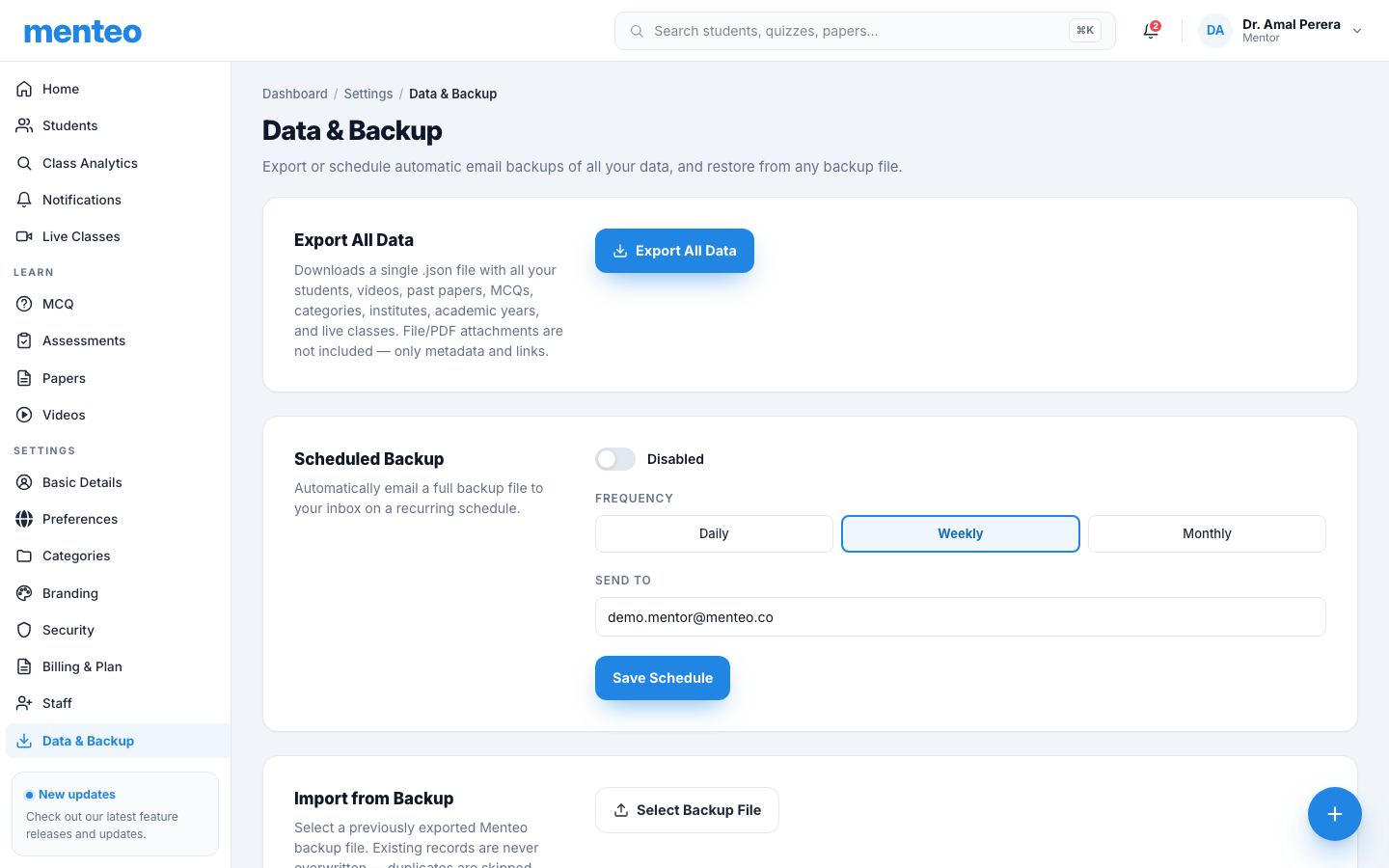
Export Your Data
A full export downloads everything in your academy as a single JSON file: students, quizzes, questions, attempts, assessments, submissions, grades, past papers, videos, classes, and categories.
- Go to Settings → Data & Backup
- Click Export Data
- Your browser downloads
menteo-backup-YYYY-MM-DD.json
TIP
Keep a backup before making large changes — deleting a quiz or student is permanent and cannot be undone from the UI.
Import / Restore
To restore from a previous backup:
- Go to Settings → Data & Backup
- Click Import Data
- Select your
.jsonbackup file - Review the confirmation dialog — it shows what will be imported
- Click Confirm Import
WARNING
Importing merges data with your current academy. It does not delete existing records — it adds or updates them. Duplicate items (same ID) are skipped.
Scheduled Backup Emails
Menteo can automatically email you a backup file on a regular schedule. The attachment is the same JSON export delivered to your inbox.
Enable Scheduled Backups
- Go to Settings → Data & Backup
- Scroll to Scheduled Backup
- Toggle Enable scheduled backups on
- Choose a frequency:
| Frequency | When the backup is sent |
|---|---|
| Daily | Every day at 03:00 UTC |
| Weekly | Every Monday at 03:00 UTC |
| Monthly | On the 1st of each month at 03:00 UTC |
- Enter the email address to receive the backup (defaults to your account email)
- Click Save Schedule
Send Now
Click Send Now to trigger an immediate backup email without waiting for the next scheduled run. Useful after making significant changes.
What the email contains
- Subject:
Menteo Backup — [Academy Name] — [Date] - Body: Summary stats (students, videos, quizzes, assessments, past papers)
- Attachment:
menteo-backup-YYYY-MM-DD.json
TIP
Forward backup emails to a shared inbox or Google Drive label to build an automatic archive.
FAQ
Is my data encrypted? All data in transit uses HTTPS (TLS 1.3). The backup file is plain JSON — store it in a secure location (encrypted drive, password manager vault).
How large is the export file? Typically under 1 MB for most academies. Very large academies with thousands of quiz attempts may produce files of 5–10 MB.
Can I open the JSON in Excel? Not directly — JSON is not a spreadsheet format. Use a free tool like jsonformatter.org to inspect it, or import it into a database or script for analysis.
What if the scheduled email doesn't arrive? Check your spam folder first. Then go to Settings → Data & Backup → Scheduled Backup and click Send Now to test delivery. If the email still doesn't arrive, contact support@menteo.co.